
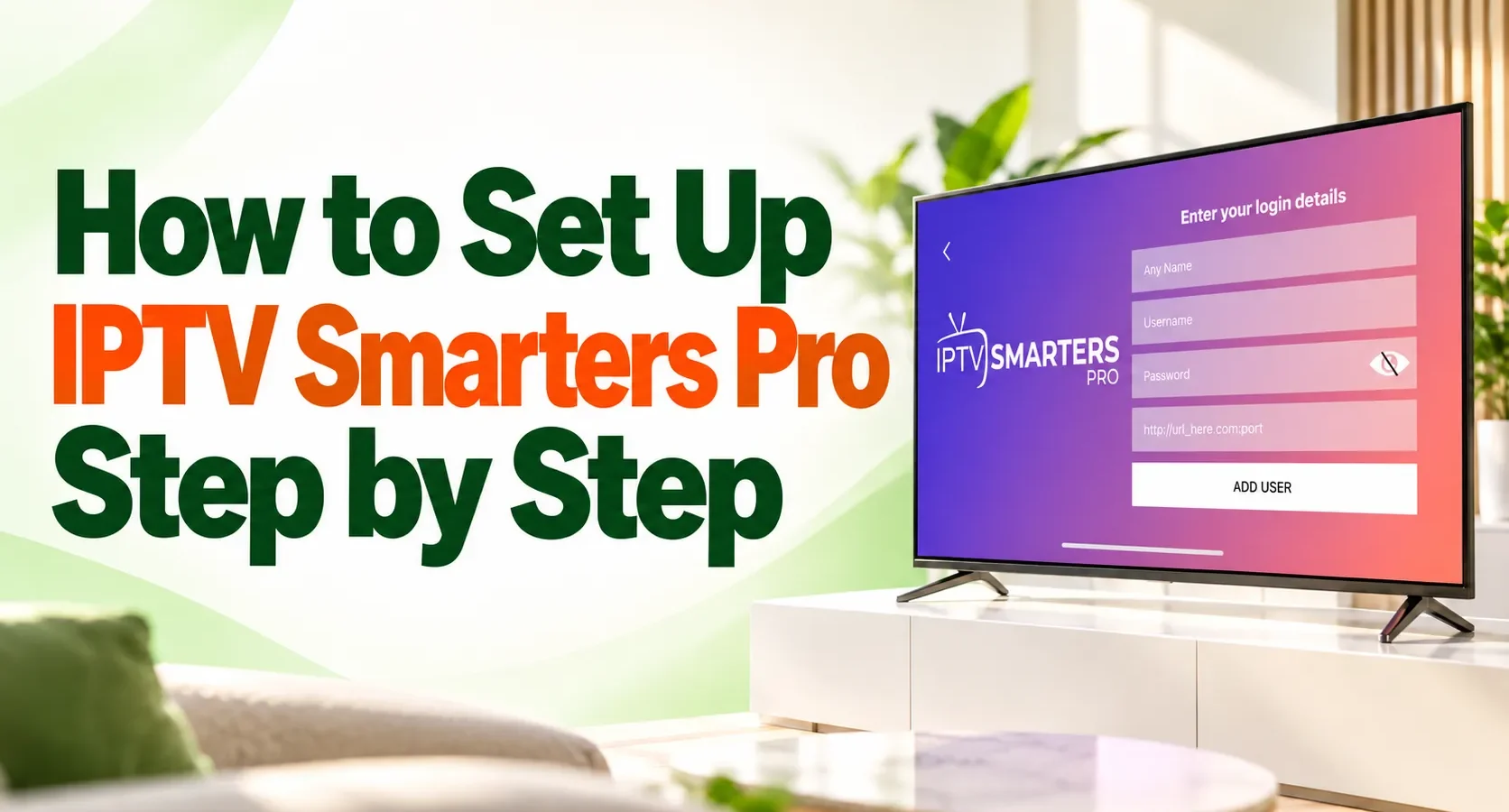
To set up IPTV Smarters Pro, install a verified version of the player, open it, choose the login method supplied by your service, enter the details exactly and allow the playlist and programme guide to load. You will normally receive either a server URL with a username and password or one long M3U playlist URL. The app is only a player: it does not create a subscription or include channels by itself. This guide explains the complete setup for viewers using authorised IPTV services in Ireland.
What is IPTV Smarters Pro?
IPTV Smarters Pro is a media-player interface used to organise and play streams from a separate service. Depending on the version, it may accept Xtream Codes-style credentials, an M3U playlist or both. It can then organise available live television, on-demand sections and Electronic Programme Guide data supplied through that account.
The player and the service are separate. Installing an app does not prove that a playlist is authorised, and an app-store listing does not grant rights to content loaded from elsewhere. If you want the underlying technology explained first, read what IPTV is and how it works.
There are also many apps with similar names. Their developers, interfaces, prices and supported login methods can differ. Follow the version recommended for your device, verify the developer shown in the store and do not assume that the first search result is the same app shown in this guide.
What you need before starting
Have these items ready before opening the app:
- a compatible television, streaming device, phone, tablet or computer;
- a stable internet connection;
- a verified Smarters-compatible player from an official store or trusted developer source;
- active access details from your authorised provider;
- either a server URL, username and password, or an M3U playlist URL;
- an optional EPG URL if the programme guide is supplied separately.
Keep the activation message open on a second device if possible. Copying details from a phone into a television is easier when you can compare every character. Never publish a screenshot containing a real password, server address or complete playlist URL.
Install IPTV Smarters Pro safely
Search your device’s official app store for the exact app name recommended by your provider. Before installing it, compare the developer name, icon, update history, privacy information and supported devices. Similar names do not guarantee the same software.
| Device | Safe starting point | What to check |
|---|---|---|
| Android phone, tablet, Android TV or Google TV | Google Play Store | Developer identity, supported device and current permissions |
| iPhone, iPad or Apple TV | Apple App Store | Developer, compatible Apple devices and in-app purchase terms |
| Windows | Microsoft Store or a verified developer download | Publisher name, supported Windows version and update date |
| Samsung or LG television | The TV’s built-in app store | Exact model, region and whether the required login method is supported |
| Fire TV | Amazon Appstore when available | App identity and compatibility with the Fire TV model |
Google Play Protect checks installed Android apps for potentially harmful behaviour, including apps from outside Google Play. Google recommends keeping it enabled. Apple likewise recommends finding and downloading iPhone and iPad applications through the App Store.
If the required app is not offered for your platform or region, ask the provider for its verified source. Do not install a random APK, modified app or download promoted with “free premium channels”. A dedicated Fire TV installation guide is scheduled separately, so this article focuses on the login and configuration process after the player is installed.
How to set up IPTV Smarters Pro with Xtream Codes
Use this method when your provider supplied three separate account details: a server or portal URL, a username and a password. Button names may vary slightly between Smarters versions, but the required information is normally the same.
Step 1 — Open the app and add a user
Launch the installed player. Read and accept its terms only if you agree with them. If a device-type prompt appears, select the option that matches the screen you are using.
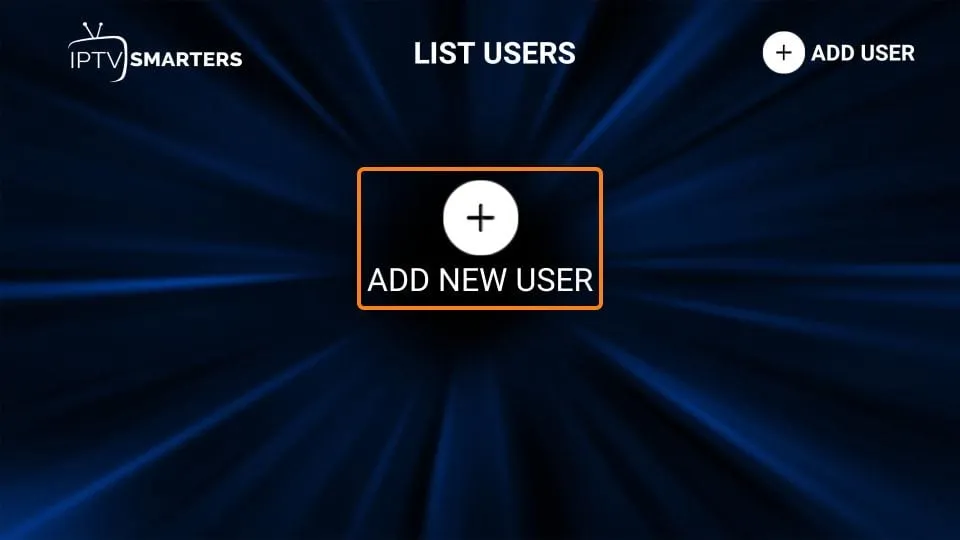
Choose Add New User, Add User or Add Playlist, depending on the version. An existing installation may show a user list first; in that case, use the plus or add-user control.
Step 2 — Choose the correct login method
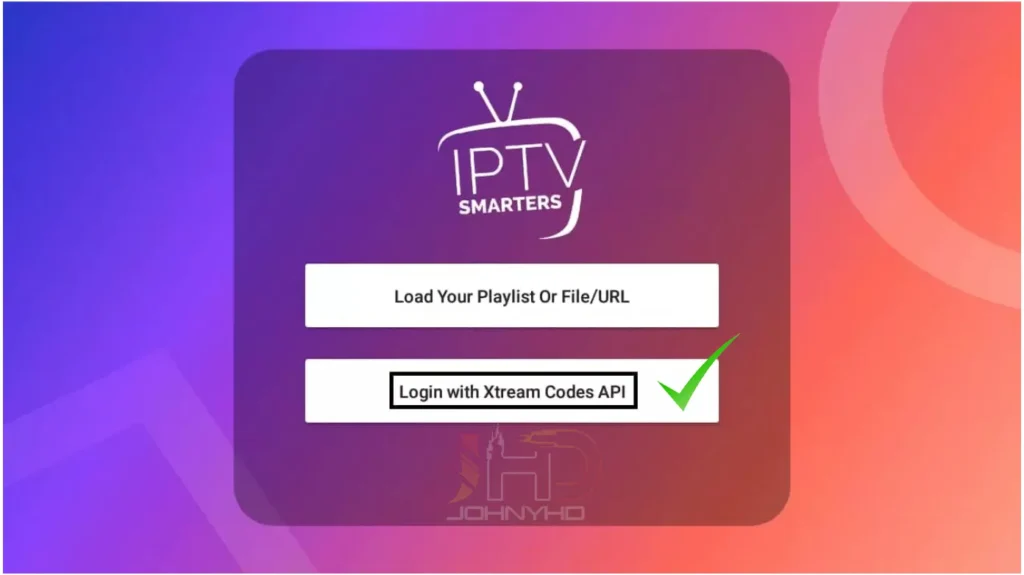
Select Login with Xtream Codes API when you have a server URL, username and password. Do not choose the M3U option unless the provider supplied one long playlist link instead.
Some white-labelled versions use wording such as Xtream Codes, XC login or Login with username and password. The screen should lead to fields for a profile name, username, password and URL.
Step 3 — Enter the login details exactly
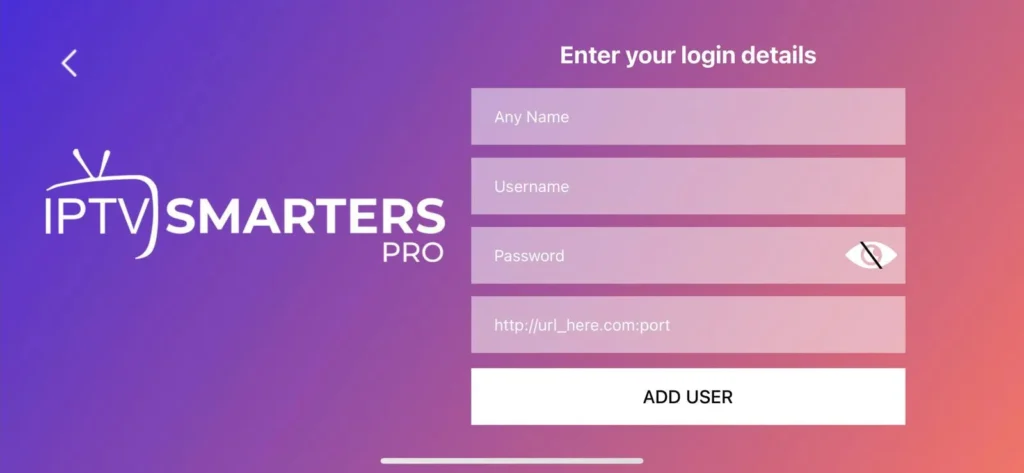
Complete each field as follows:
- Any Name or Playlist Name: enter a private label that helps you recognise the profile.
- Username: enter the username supplied for the viewing account.
- Password: enter the matching password, respecting upper- and lower-case letters.
- Server URL or Portal URL: enter the complete address supplied by the provider, including http:// or https:// and any port number shown.
Do not use your WordPress, email or payment-account password unless the provider explicitly states that it is also the viewing login. Avoid adding spaces at the beginning or end of any field.
Step 4 — Add the user and wait for the first import
Select Add User, Login or the equivalent confirmation button once. The player then contacts the supplied server and imports the categories available to the account.
Leave the app open while the first import runs. The time required depends on the playlist size, device and connection. Avoid repeatedly pressing the login button because that can create duplicate profiles.
When the import succeeds, the app normally opens a dashboard with sections such as Live TV, Movies, Series or TV Guide. The exact sections depend on what the connected service supplies.
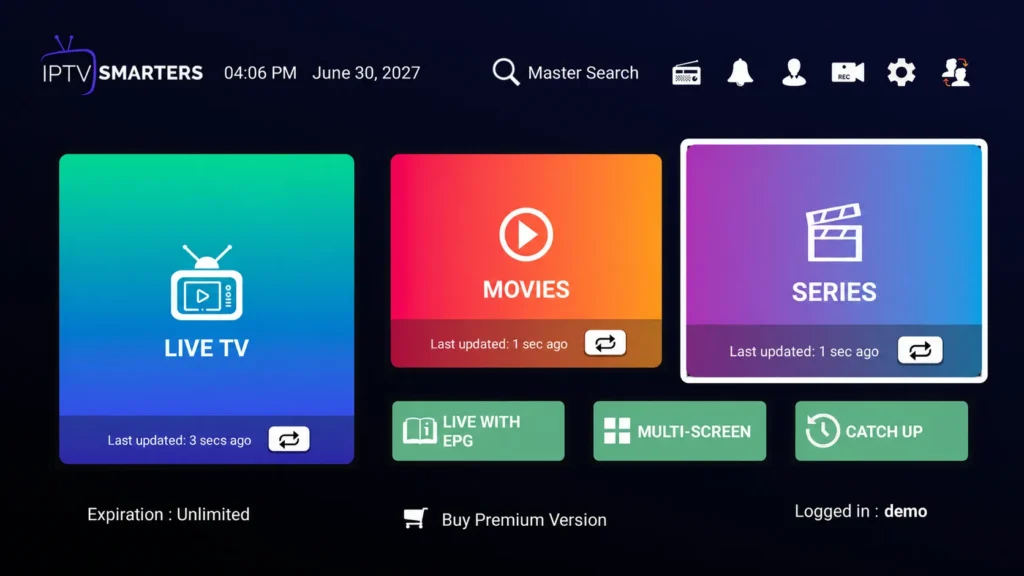
Step 5 — Open Live TV and test playback
Open Live TV, choose one available category and test a stream you are entitled to watch. Check that the picture starts, the sound is present and the remote or touch controls respond correctly.
Do not test only one item. If one stream fails while others work, the account and app may be configured correctly and the problem may be limited to that source. If nothing loads, check the login details before changing player settings.
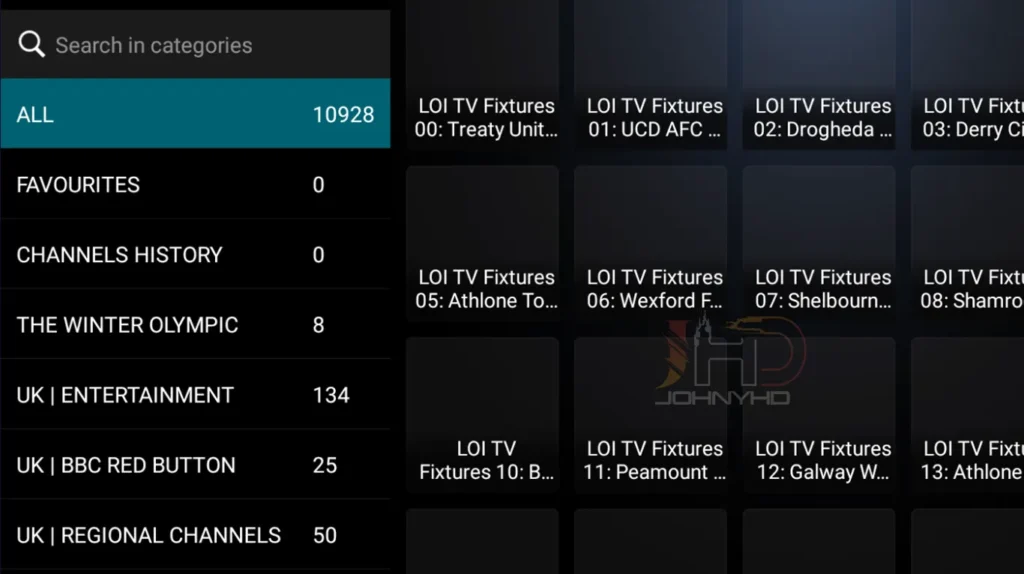
Step 6 — Check the programme guide
Open the TV Guide or EPG view. With some accounts the guide is included automatically; others require a separate EPG URL supplied by the provider. Allow the first synchronisation to finish before assuming it has failed.
If the guide remains empty, look for Refresh EPG, Update TV Guide or a similar option. Confirm the device’s date, time and time zone as well. Do not copy an EPG address from an unknown website.
How to add an M3U playlist to IPTV Smarters
Use the M3U method only when your provider supplied one long playlist URL or a legitimate local playlist file. The URL often contains account information, so treat it like a password.
- Return to the add-user screen.
- Select Load Your Playlist or File/URL.
- Enter a private playlist name.
- Choose M3U URL when you received a link, or the local-file option when you received a file.
- Paste the complete URL without changing any characters.
- Select Add User and wait for the list to load.
An M3U playlist and an EPG are not necessarily the same resource. If channels load but the guide is blank, ask whether a separate XMLTV or EPG URL is required. Do not convert, shorten or share the playlist link through an untrusted website.
Xtream Codes or M3U: which option should you choose?
Use the format actually issued for your account. Neither method is universally better, and support depends on the app version and provider configuration.
| Login method | Details entered | Practical advantage | Common mistake |
|---|---|---|---|
| Xtream Codes-style login | Profile name, username, password and server URL | Separates the fields and may import categories and guide data together | Missing the protocol, port or one character in the credentials |
| M3U playlist | Playlist name and one long URL or local file | Simple when the provider supplies a single link | Exposing the URL publicly or selecting local file instead of URL |
Do not create or search for “free login codes”. Use only the credentials issued for your own authorised account. A separate guide will compare the two formats in greater technical detail without duplicating this setup article.
Recommended checks after setup
Once playback works, make a few simple checks before changing advanced settings:
- confirm the device date, time and time zone;
- allow the playlist and EPG to finish their initial load;
- add one or two favourites to confirm the profile saves correctly;
- test sound and subtitles on content that actually provides them;
- close and reopen the app to check that the user profile remains available;
- keep the app and device operating system updated;
- leave experimental decoder, buffer and output settings at their defaults unless a specific fault requires a change.
Features such as catch-up, recording, multiple screens, subtitles and alternative audio depend on the player version, device, account and source. The presence of a button does not guarantee that the connected service supplies the feature.
Common IPTV Smarters Pro setup problems
Invalid username or password
Compare the entered text with the provider’s message character by character. Check capital letters, similar-looking characters and accidental spaces. Confirm that the server URL includes the protocol and any required port.
The app returns to the login screen
Make sure the account is active and that the selected method matches the details you received. A username and password intended for a customer portal may not be the same as the player login.
No channels or categories appear
Wait for the initial import, then refresh the playlist once. If the profile loads but remains empty, ask the provider to confirm the account status and playlist permissions rather than repeatedly reinstalling the app.
Channels load but the EPG is blank
Refresh the guide, verify the time zone and check whether a separate EPG URL is required. A blank guide does not automatically mean that playback is broken.
The app freezes or closes
Restart the device and ensure that sufficient storage is available. Update the app from the same verified source used for installation. On Android, clearing the app cache may help, but clearing all app data removes saved profiles and requires the credentials again.
Playback buffers after successful setup
Successful login confirms only that the credentials were accepted. Buffering can still come from Wi-Fi conditions, household traffic, device resources, the stream or the service. Avoid changing several settings at once because doing so makes the cause harder to identify.
How to protect your login details
Treat both an M3U URL and Xtream Codes-style credentials as private account information. Do not post them in a forum, public support ticket, social-media comment or screenshot.
If you need help, share the device model, app version, exact error message and the stage that fails. Mask the username, password and server address. IPTV Ireland customers can use the contact page for account-specific assistance.
Use only content you are entitled to access. IPTV Smarters Pro is a player, and the player itself does not determine whether a particular service has permission to distribute its content. Our separate guide explains when IPTV is legal in Ireland and what viewers should assess.
Frequently asked questions
Does IPTV Smarters Pro include channels?
No. It is a player interface. You need valid access details or a playlist from a separate, authorised service.
Where do I get my IPTV Smarters username and password?
Your service provider issues them when the account is activated. Do not use credentials advertised as free or shared publicly. If your provider supplied only one long M3U URL, use the playlist method instead.
Why can I not find IPTV Smarters Pro in my app store?
Availability can vary by platform, country, television model and developer. Ask for the verified app name and source for your device. Do not substitute a similarly named app without checking its developer and supported login method.
Can I use the same account on several devices?
Installing the player on several devices and watching simultaneously are different matters. The provider’s connection allowance and terms determine how many streams can be active at once.
Should I use Xtream Codes or an M3U link?
Use the method your provider supports and the exact details supplied for the account. Xtream Codes-style login uses separate server, username and password fields; M3U setup uses one playlist URL or file.
Conclusion
IPTV Smarters Pro setup is straightforward when the app is verified and the correct login method is used. Install the right version, enter the supplied details without changing them, wait for the first import and test playback before adjusting advanced settings.
If you are preparing a supported setup, review the current IPTV Ireland service information and confirm device compatibility before ordering. Existing customers who cannot match the screens in this guide should contact support with the device model and app version, while keeping all credentials private.