
To use IPTV on Smart TV, connect the television to the internet, install a compatible player from its built-in app store, then enter the legitimate access details supplied by your service. Those details are normally either a server address with a username and password or an M3U playlist URL. If the required player is unavailable for your television, connect a supported streaming device by HDMI instead. This guide covers the safe setup route for Samsung, LG webOS, Android TV and Google TV using authorised IPTV services in Ireland.
Can you get IPTV directly on a Smart TV?
Yes, many Smart TVs can run a compatible IPTV player without a separate box. The important detail is the television’s operating system, not simply the words “Smart TV”. Samsung televisions commonly use Tizen, LG televisions use webOS, and other brands may use Android TV, Google TV or a manufacturer-specific platform.
Each platform has its own app store. An app offered on Google Play may not exist in Samsung Apps or the LG Content Store, and availability can also vary by model year and country. Check the store on the television before paying for a player activation or assuming a particular app will work.
An IPTV player is not the same as an IPTV service. The player supplies the interface; the separate service supplies authorised streams and account details. If that distinction is unfamiliar, read what IPTV is and how it works before starting the installation.
What you need before setting up IPTV on Smart TV
Prepare the following:
- a Smart TV connected to the internet;
- access to the television’s official app store;
- enough free storage to install a player;
- a compatible IPTV player from a verified developer;
- active access details from an authorised provider;
- the television remote and, ideally, a phone or computer on which to read the activation message.
Your provider may issue either separate server, username and password fields or one long M3U URL. Do not post those details publicly. An M3U address can contain account information and should be protected like a password.
How to set up IPTV on Smart TV step by step
The exact labels differ between televisions and player apps, but the setup follows the same six stages.
Step 1 — Identify your Smart TV platform
Open Settings, Support, About, Device Information or a similarly named menu and note the full model number and operating system. Do not rely on the logo on the front of the television: two sets from the same manufacturer can use different platforms or app catalogues.
Knowing the platform tells you which store and app version to use. It also prevents a common mistake: trying to install an Android application on a Samsung Tizen or LG webOS television.
Step 2 — Connect the television and update it
Connect the TV through Ethernet or a stable home Wi-Fi network. Open the software-update section and install any available television update before searching for the player. A current operating system can improve app-store access and compatibility.
Use Ethernet when the router is close enough and the television has a network socket. Wi-Fi can also work well, but signal strength and household congestion matter more than the headline broadband speed. Do not assume that a successful speed test guarantees stable playback.
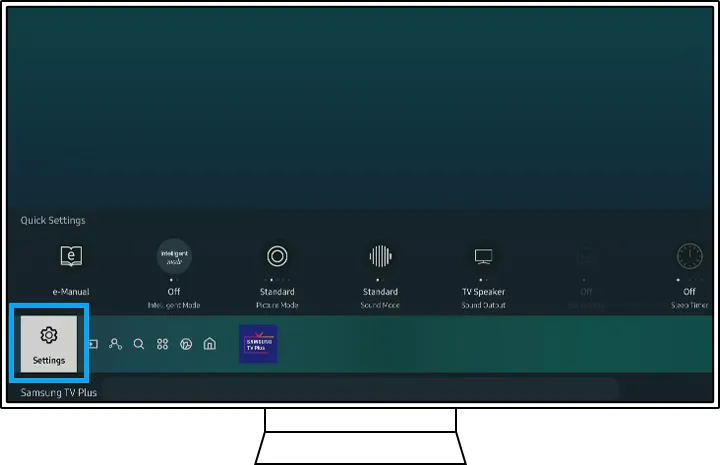
Step 3 — Open the correct app store
Use the route that matches the television:
| Smart TV platform | Where to look for apps | Typical route |
|---|---|---|
| Samsung Tizen | Samsung Apps through Smart Hub | Home → Search or Apps |
| LG webOS | Apps or LG Content Store | Home → Apps or LG Content Store → Search |
| Google TV | Google TV Apps tab | Home → Apps or Search |
| Android TV | Google Play Store | Home → Apps → Google Play Store |
Samsung Ireland’s current app guidance says to use Home, open Search, find the required app and select Install. LG’s webOS guidance uses Home, Apps or LG Content Store, Search and Install, with the path varying by webOS generation. Google likewise documents searching or browsing the Apps tab on Google TV.
Step 4 — Search for and install a compatible IPTV player
Search for the exact player name recommended for your account. Before choosing a result, verify the developer, supported login format, recent update history, privacy information, price and in-app purchase terms. Similar names and icons do not prove that two apps have the same developer.
Select Install, wait for the download to complete and then open the app. If the player does not appear, check the television’s model, region and operating-system version. Do not download a random file or follow a sideloading guide merely because the app is absent from the official store.
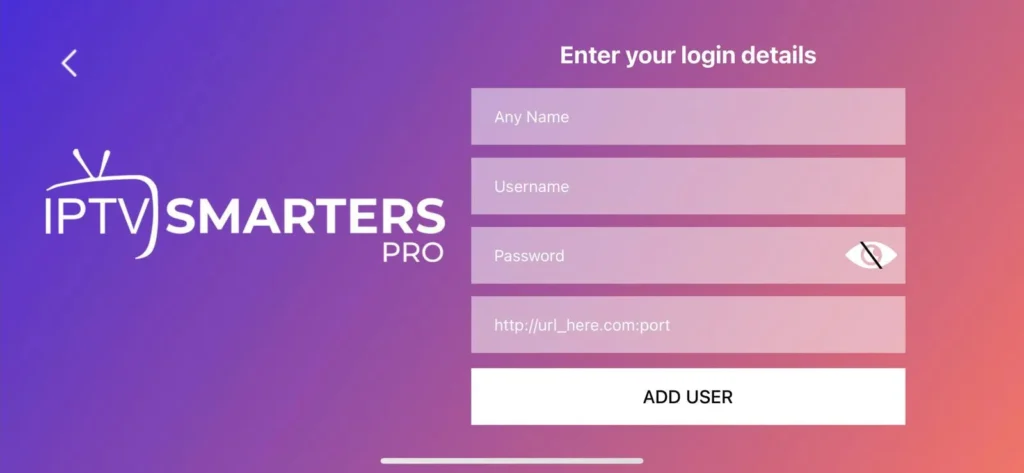
Step 5 — Add the account using the supplied method
Open the installed player and choose the login method that matches the information from the provider:
- Server or Xtream-style login: enter a private profile name, server or portal URL, username and password.
- M3U playlist: enter a private playlist name and the complete M3U URL, or import a legitimate local file when the app supports it.
Include http:// or https:// and any port shown in the supplied server address. Avoid leading or trailing spaces. Never replace one login method with details intended for another, and never search online for shared credentials or free premium playlists.
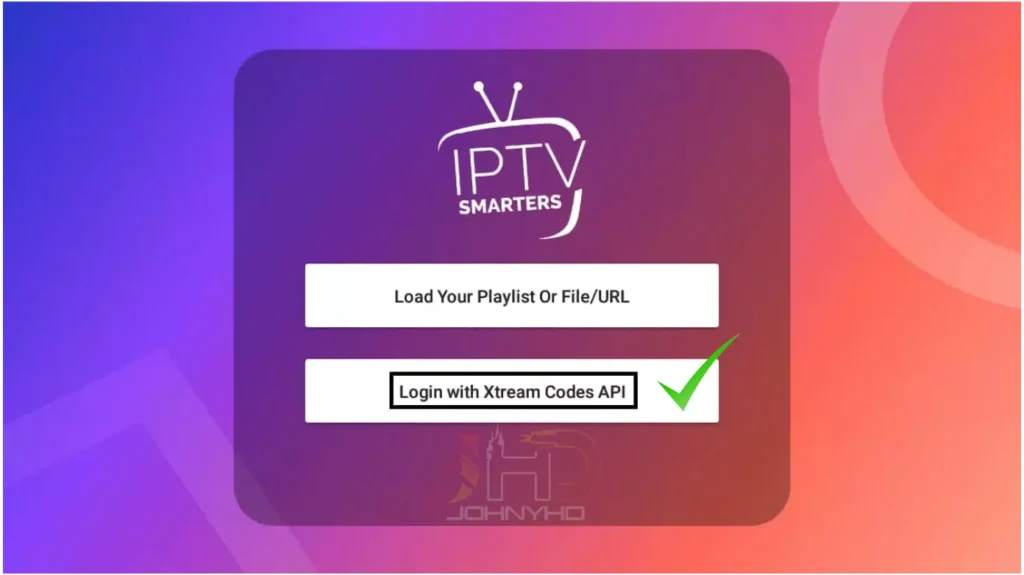
Step 6 — Let the list load and test playback
Select Add User, Login or the equivalent button once, then leave the app open while it imports the available categories and Electronic Programme Guide data. Large lists may take longer to organise on an older television.
When the dashboard appears, open one category and test content you are entitled to watch. Check picture, sound, remote navigation and programme-guide data. Test more than one item before deciding that the entire setup has failed.
IPTV on Samsung Smart TV
On a current Samsung Smart TV, press Home, select Search or Apps, enter the verified player name, choose the correct result and select Install. Samsung notes that the interface and available apps can vary by model and region.
If the app is installed but not visible on the Home screen, open Apps and add it to Home. If it stops opening, restart the television and check for software and app updates before deleting it. Reinstalling removes local app data, so keep the account details available before doing so.
Avoid instructions that ask you to install an unofficial package through a USB drive or developer mode. When a player is not in the Samsung store for your model, use another verified store app or a supported external device instead.
IPTV on LG Smart TV
For newer LG webOS televisions, press Home, open Apps, select Search, enter the player name and choose Install. Older webOS menus may label the store LG Content Store. LG advises that app support depends on the television model and region, so check the listing for your exact set.
If the search returns no suitable player, update webOS and confirm that the TV’s country settings are correct for where it is being used. Do not change the country simply to bypass regional availability. A player that appears in another country’s catalogue may not be supported on the Irish model or under its terms.
IPTV on Android TV or Google TV
On Google TV, move to the Apps tab or use Search, enter the verified app name and select Install if it is available. On Android TV, open Google Play from the Apps area and search there.
Read the developer name and permissions before installing. Google Play contains several players with similar titles, and a familiar keyword in an app name is not proof of identity. Keep Google Play Protect enabled and install only the version intended for a television interface.
Some Android phone apps are technically installable but difficult to use with a TV remote. Prefer a player whose store listing explicitly supports Android TV or Google TV.
What if your Smart TV has no compatible IPTV app?
Use a supported external streaming device rather than replacing a working television. A Fire TV, Google TV device, Android TV box or Apple TV can connect to an available HDMI port and provide a newer app platform.
An external device is also useful when the television’s built-in interface is slow, no longer receives updates or has very limited storage. Confirm that the chosen player is available from that device’s official store before buying the hardware. Do not assume that every player exists on every platform.
Common Smart TV setup problems
The IPTV player does not appear in the app store
Confirm the model number, operating system, country and current software version. The app may not support that platform or may be unavailable for the TV’s model year or region. Choose another verified compatible player or use an external device.
The app installs but rejects the login
Check every character in the username, password and server address. Make sure the protocol and port are included and that the chosen login method matches the details supplied. A customer-account password is not necessarily the same as a player password.
The playlist loads but no programme guide appears
Wait for the first import to finish, then use the app’s refresh-EPG command once. Confirm the TV’s date, time and time zone. Some services issue a separate EPG address, while others include guide data automatically.
Playback freezes or buffers
Restart the app, television and router, then compare another stream. If possible, test Ethernet or move the Wi-Fi access point closer. Do not alter several decoder and buffer settings simultaneously, because that makes the cause harder to isolate.
The TV says there is not enough storage
Remove unused apps and restart the television before trying again. Do not delete an app containing settings you cannot recreate. Older Smart TVs can have very limited storage even when the screen and picture remain perfectly usable.
Smart TV setup and account safety
Use only access details issued for your own authorised account. An app is a playback tool; it does not determine whether the connected source has distribution rights. Do not install modified players, publish screenshots with working credentials or enter a playlist into an unknown conversion website.
For account-specific help, use the IPTV Ireland contact page and provide the television brand, full model, operating system, app name and exact error message. Mask the password, server address and playlist URL before attaching a screenshot.
Frequently asked questions
Can I install IPTV on any Smart TV?
No. The television needs a compatible player in its app store, or it needs to work with a supported external streaming device. App availability depends on the operating system, model year and region.
Do I need a box for IPTV on Smart TV?
Not when the television can install a suitable player directly. A box or streaming stick is useful when the built-in platform is unsupported, slow or no longer updated.
Does an IPTV player include channels?
Normally, no. A player organises and plays access supplied separately. Check the app listing and service terms rather than assuming that installing an app includes content.
Should I use an M3U playlist or a username and password?
Use the method supplied and supported by your provider. A server-based login normally uses a server URL, username and password; an M3U setup uses one long playlist URL or file.
Why does the same app appear on one TV but not another?
App catalogues vary by platform, model year, region and developer support. Two televisions from the same manufacturer can therefore show different results.
Conclusion
Setting up IPTV on Smart TV requires four essentials: a compatible television platform, stable internet access, a verified player and valid service details. Identify the operating system first, install from the official store, use the exact login method supplied and test playback before changing advanced settings.
If the television cannot run a suitable player, a supported HDMI streaming device is usually the simplest alternative. Before ordering, review the current IPTV Ireland service information and confirm the exact TV model, player and account requirements.