
To install IPTV Smarters on Firestick safely, first search for the exact player in the Amazon Appstore and verify its developer before selecting Get. If a verified Smarters app is not available for your Fire TV model or region, do not enter a random Downloader code or install an APK from an unknown mirror. Use another compatible player from the Amazon Appstore, follow a current installation link published by the verified app developer, or use a supported device on which the app is officially listed. Once installed, open the player and enter the legitimate login details supplied by your authorised IPTV service in Ireland.
Can you install IPTV Smarters on a Fire TV Stick?
It depends on current app availability, the Fire TV model, the Amazon marketplace and which Smarters-branded application you mean. Several players use similar names, and a search result called “Smarters” is not automatically the same product shown in another guide.
The safest method is the same process Amazon recommends for any Fire TV app: search from the main menu, inspect the listing, select Get, then open the installed application. Amazon’s guidance for downloading apps on Fire TV confirms that route.
Many search results instead recommend enabling developer options and entering a short Downloader code. Codes are not permanent identities. They can expire, redirect or be replaced, and the SERP research for this article showed several different codes claimed to install the same app. This guide therefore does not publish a code or unverified APK address.
What you need before installation
Prepare these items before using the Fire TV remote:
- a registered Amazon Fire TV Stick connected to the internet;
- access to the Amazon account used on the device;
- the exact player name and verified developer information;
- sufficient free Fire TV storage;
- active access details from an authorised provider;
- either a server URL, username and password or a complete M3U playlist URL.
An IPTV player does not normally include channels. It provides the interface used to organise and play access supplied separately. If you need that distinction explained first, read what IPTV is and how it works.
Keep the provider’s message open on a phone while entering details on the television. Never display a real password, server address or M3U URL in a public screenshot.
How to install IPTV Smarters on Firestick step by step
Fire TV menus can vary slightly by device generation and software version. The process below uses the official Amazon Appstore rather than an unknown download code.
Step 1 — Update the Fire TV Stick
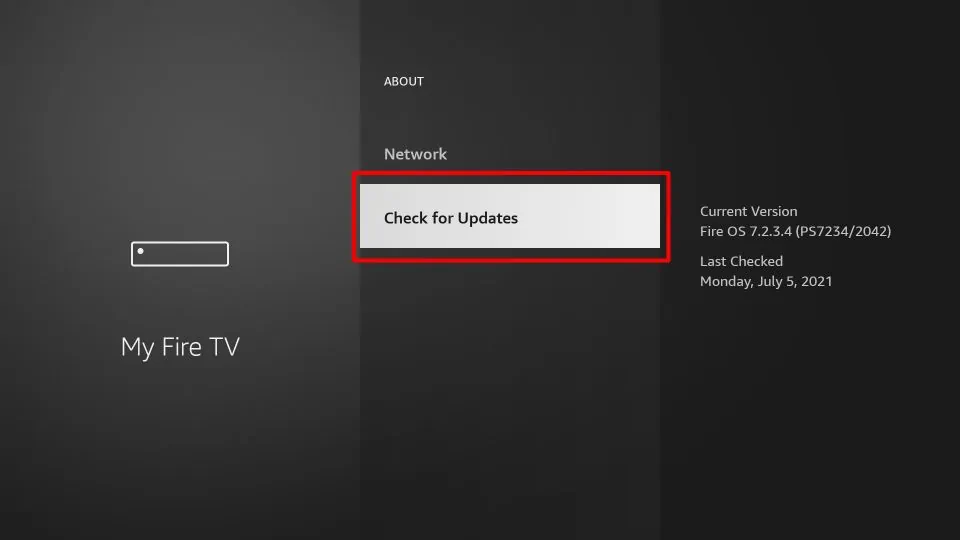
From the Fire TV home screen, open Settings, select My Fire TV or Device & Software, open About, then check for updates. Keep the device connected to power and the internet while an update is installed.
Amazon states that Fire TV devices receive software updates automatically when connected, but checking first can prevent app-store, registration and compatibility problems. You can also confirm the device model in the About area.
Step 2 — Search the Amazon Appstore
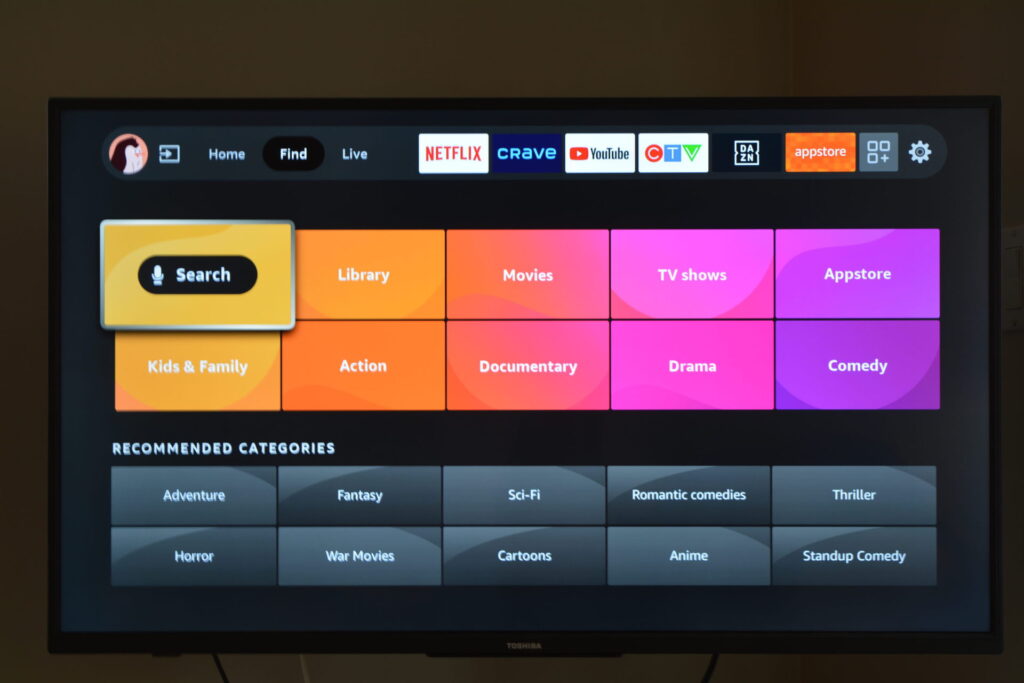
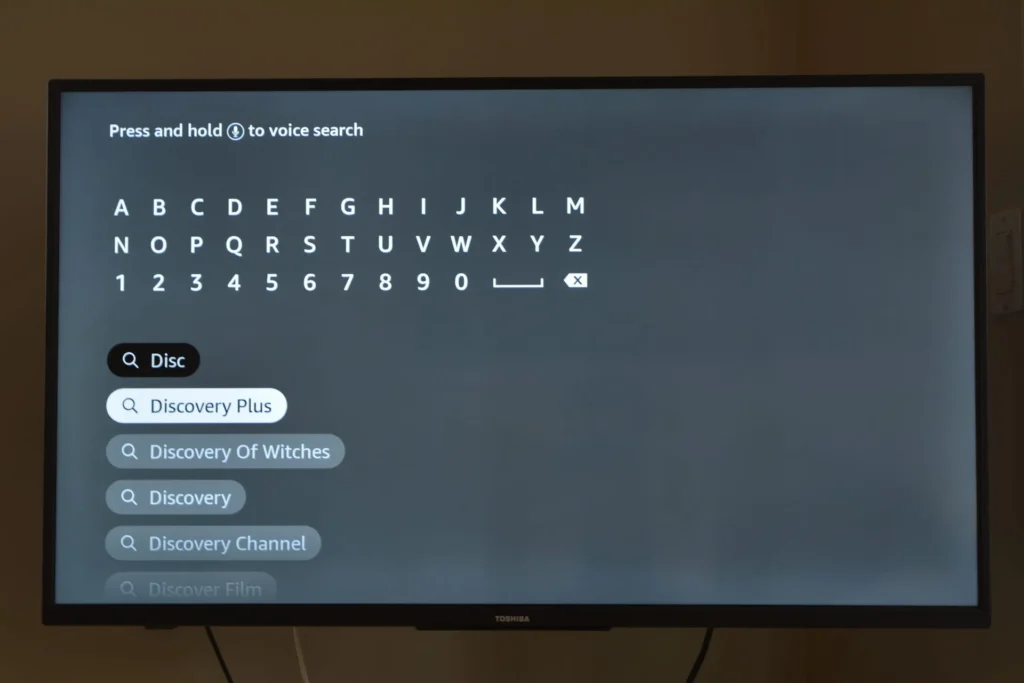
Return to the home screen and select Find or the search icon. Enter the complete player name rather than a broad term such as “free IPTV”. You can also hold the Alexa button and say the name when voice search is enabled.
Select the matching result but do not install it yet. If the exact application does not appear, skip to the section explaining what to do when IPTV Smarters is not in the Amazon Appstore.
Step 3 — Verify the app before downloading it
Open the app detail page and check:
- the developer or publisher name;
- compatible Fire TV devices;
- the app description and supported login formats;
- the update date and recent reviews;
- permissions, privacy information and in-app charges;
- whether the listing says that content or a subscription is included.
Do not choose an app only because its title contains “IPTV”, “Smarters” or “Pro”. Similar naming does not prove common ownership. If the provider recommended a particular application, compare the listing with the developer information they supplied.
Step 4 — Select Get and open the player
When the listing is verified and compatible, select Get or the basket icon. Wait for the download to finish, then select Open. Amazon may ask you to verify the account before completing an Appstore purchase or download.
If the app is installed but missing from the front row, open the Apps area or Your Apps & Channels, find the player and launch it there. You may then move it nearer the beginning of the app list.
Step 5 — Choose the login method you received
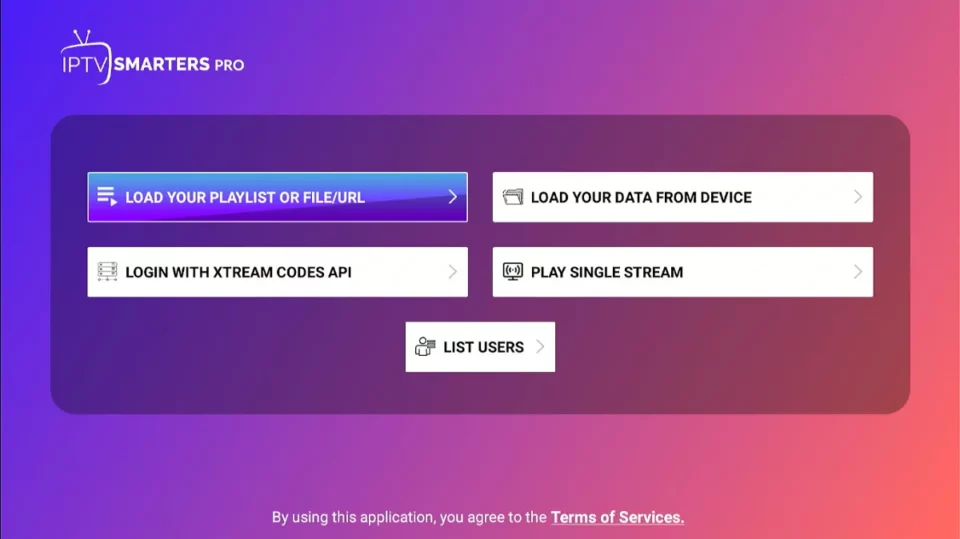
Open the player and read its terms and privacy notice. Choose the method that matches the provider’s activation details:
- Server or Xtream-style login: normally requires a profile name, server or portal URL, username and password.
- M3U playlist: normally requires a profile name and one long playlist URL or a legitimate local file.
Do not use credentials advertised publicly as free, and do not convert a playlist through an unknown website. A playlist URL can expose the account in the same way as a password.
Image 5 placement: Insert a login-method selection screenshot directly below this paragraph.
Step 6 — Enter the account details exactly
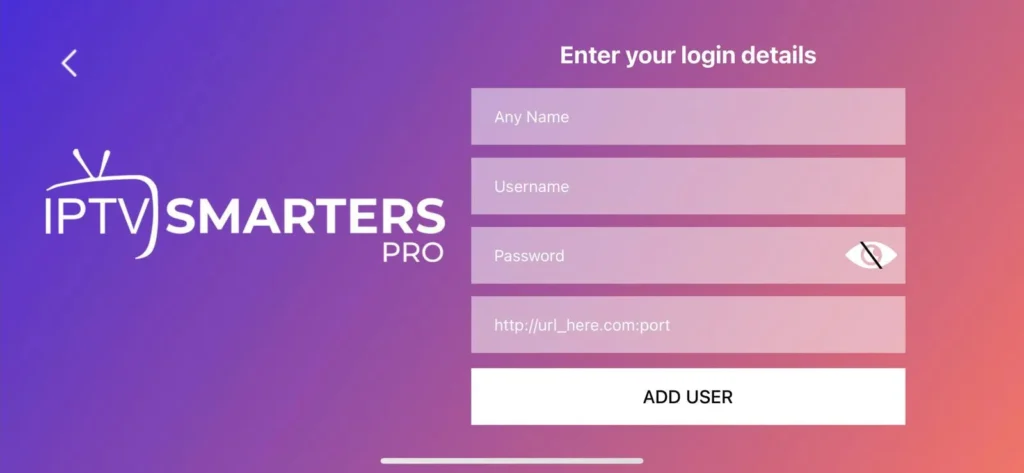
Enter the server address with its full http:// or https:// prefix and any port supplied. Check upper- and lower-case letters in the username and password, and remove accidental spaces at either end.
Use a private profile label rather than putting the password in the name field. Select Add User, Login or the equivalent once, then wait while the player imports the available categories and programme-guide data.
Step 7 — Test playback and remote control
Open one category and test content you are entitled to watch. Confirm that the picture starts, sound is present and the Back, Select and directional buttons work properly. Then check another item and the Electronic Programme Guide before changing advanced settings.
Successful login only confirms that the credentials were accepted. Buffering can still come from Wi-Fi conditions, household traffic, the Fire TV’s available resources, the stream or the service.
What if IPTV Smarters is not in the Amazon Appstore?
Do not assume that the first Downloader code in a video, forum post or AI-generated answer is official. The supplied Google results contained several incompatible codes and download addresses for IPTV Smarters. That conflict is a warning that a short code alone cannot verify who controls the file.
Use one of these safer options:
- Ask for the verified developer listing. Request the exact Amazon Appstore link or current official developer page, not merely an app name.
- Choose another compatible player in the Amazon Appstore. Confirm that it supports the login format issued for the account.
- Use a supported alternative device. A Smart TV, Google TV, Android TV or Apple TV may offer an officially listed player compatible with the service.
- Wait for a verified release. App availability changes; installing an unknown APK is not worth exposing the device or credentials.
Amazon documents sideloading primarily as a developer-testing process. An external installation bypasses Appstore review and automatic distribution controls, so the source and file integrity need independent verification. This article does not recommend enabling unknown sources for an unverified app.
Why this guide does not give a Downloader code
A Downloader code is only a shortcut to a URL. It does not prove that the destination belongs to the original developer, that the file is unchanged or that the same destination will be served later.
The AI Overviews in the supplied research proposed multiple different codes for the same named application. Repeating one would create a false impression of verification. If the genuine developer publishes a current Fire TV installation method, use the link on that developer’s verified domain and confirm that the instructions still apply to your Fire TV model.
Avoid any download page that:
- bundles a player with unexplained premium content;
- asks for payment before identifying the developer;
- distributes a modified or “unlocked” build;
- requests unnecessary device permissions;
- tells you to disable security protections permanently;
- hides the final download domain behind several redirects.
How to keep the Fire TV installation secure
Install Fire TV software updates, remove players you no longer use and review installed apps from Settings → Applications → Manage Installed Applications. If an app was obtained outside the Appstore, it may not update automatically; that is another reason to prefer the official store.
Protect the login details as account secrets. Do not send a complete M3U address in a public comment, upload a screenshot containing the password or reuse an important email password as the player profile name.
The player is separate from the content source. Installing IPTV Smarters does not prove that a service has permission to distribute what it offers. Our legal guide explains when IPTV is legal in Ireland and what viewers should verify.
Common Fire TV installation problems
The app does not appear in search
Check the spelling, Amazon marketplace, Fire TV model and software version. The listing may be unavailable for that device or region. Do not substitute a similarly named application until its developer and compatibility are confirmed.
The Get button is unavailable
Confirm that the Fire TV is registered, connected to the internet and using a supported marketplace. Check whether the listing identifies the device as incompatible and whether Amazon account verification is required.
The player opens but login fails
Make sure the selected login method matches the information supplied. Re-enter the server URL, username and password carefully, including the protocol and port. Contact the provider if the account status or server address cannot be confirmed.
The app closes or the Fire TV is slow
Restart the Fire TV and check available storage. Remove unused apps rather than repeatedly clearing data from the player. Clearing app data deletes saved profiles and requires the credentials again.
The playlist loads but the EPG is empty
Allow the initial guide import to finish, verify the Fire TV time zone and refresh the EPG once. Some services supply programme-guide data separately, while others include it with the account.
How to update IPTV Smarters on Firestick
For an Amazon Appstore installation, open the app library and apply the available update, or allow Fire TV to manage supported app updates. Keep Fire OS current as well.
If the player came from outside the Appstore, do not install an update from a random pop-up or code. Return to the same verified developer source and confirm the package name and current version. When the source cannot be authenticated, remove the app and use a verified Appstore alternative.
Frequently asked questions
Is IPTV Smarters available in the Amazon Appstore?
Availability can change by marketplace, device and publisher. Search on the Fire TV itself and verify the developer shown on the current listing. Do not rely on an old screenshot or article as proof that it is still available.
Is IPTV Smarters free on Firestick?
The player and the content service are separate. A player may be free, paid or supported by in-app purchases, while authorised access details normally come from another service. Read the current listing before installing.
Does IPTV Smarters include channels?
Normally, no. It is a media-player interface that uses access details or a playlist supplied separately. The app name alone does not establish content rights.
Can I use a Downloader code from a YouTube video?
A code is not proof of origin or safety. Use it only when the verified developer currently publishes that exact code and destination. This guide does not endorse third-party codes found in videos, forums or AI-generated answers.
Can I use the same IPTV account on a Smart TV and Fire TV Stick?
The player can be installed on more than one supported device, but the provider’s connection allowance determines how many streams may run at the same time. Check the account terms before using concurrent devices.
Conclusion
The safest way to install IPTV Smarters on Firestick is to use a verified Amazon Appstore listing, confirm the developer and compatibility, then enter the legitimate access details exactly. If the app is absent, do not replace verification with a random Downloader code. Choose another official-store player, follow a current method published by the genuine developer or use a supported alternative device.
For a compatible setup, review the current IPTV Ireland service information before ordering and confirm the Fire TV model, player name and login format. Existing customers can use the contact page for device-specific help without sharing passwords publicly.